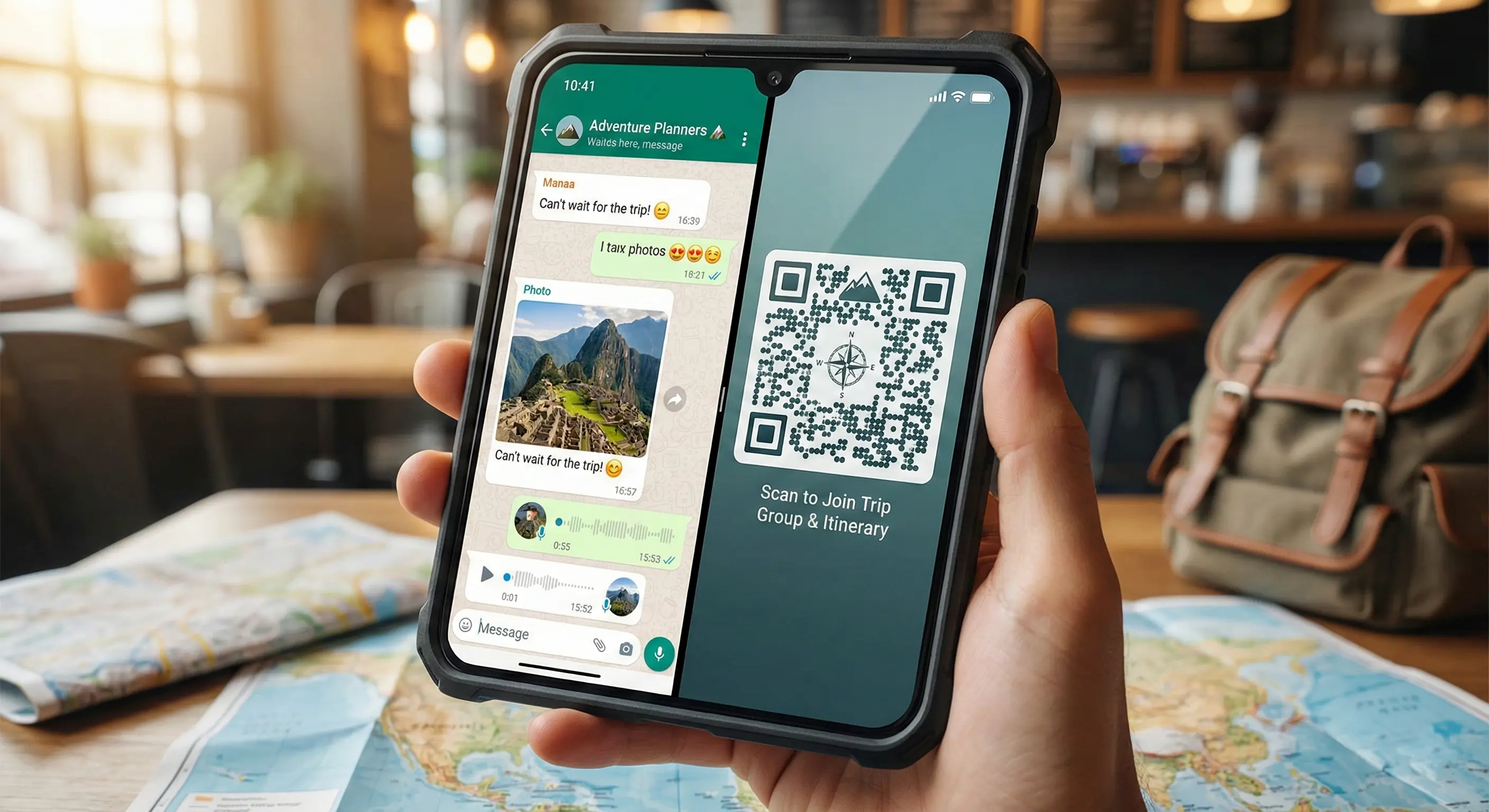
Learn how to create a WhatsApp QR code for chat, contact sharing, business profiles, and groups. Step by step guide with examples and best practices.
If you run a business, provide customer support, or simply want people to contact you faster, a WhatsApp QR code can make communication effortless. Instead of typing a phone number or saving a contact manually, a user can scan your QR code and start chatting instantly.
In this guide, you’ll learn what a WhatsApp QR code is, how to create one, and the best ways to use it.
What is a WhatsApp QR code ?
A WhatsApp QR code is a QR code that opens a WhatsApp chat, contact profile, or group when scanned.
It can be used for:
- Direct chat messaging
- Business inquiries
- Customer support
- Order & delivery communication
- WhatsApp groups or communities
When scanned, it automatically:
- Opens WhatsApp
- Starts a chat or joins a group
- Without saving a number manually
This makes communication faster and more convenient.
Types of WhatsApp QR codes :
There are three useful formats:
1. WhatsApp Chat QR code
Opens chat with a pre-filled message
Useful for orders, support, and leads.
2. WhatsApp Contact QR code
Lets users save your number and chat instantly.
3. WhatsApp Group QR code
Allows users to join a community or support group.

How to create a WhatsApp QR code (Step by step) ?
Step 1 - Open MakeQRFree.com
Go to MakeQRFree.com - Free QR Code Generator
Step 2 - Select “WhatsApp QR Code”
Step 3 - Enter Details
- Your WhatsApp number (with country code)
- Optional pre-filled message (example: Hi, I’d like to know more about your services).
Step 4 - Customize (Optional)
- Change QR color
- Add logo
- Adjust corner style
Step 5 - Generate & Download
Use it on:
- Business cards
- Website
- Flyers or brochures
- Social media
- Storefront boards
Where can you use a WhatsApp QR code?
Perfect for:
- Local shops & restaurants
- Freelancers & service providers
- Real estate agents
- Online sellers & e-commerce
- Clinics, salons, fitness centers
- Job portfolios
- Support desks
Anywhere people need to reach you quickly.

Static vs Dynamic WhatsApp QR Code :
Static QR
- Permanent link
- Cannot be edited later
Dynamic QR
- You can update the number or message anytime
- Scan tracking & analytics available
Businesses should prefer dynamic QR codes.
Best practices :
- Keep QR contrast high
- Avoid tiny sizes
- Test on multiple phones
- Don’t place QR on glossy surfaces
- Use simple clean design
Common mistakes to avoid :
- Using wrong country code
- Over-decorated QR designs
- Placing QR in hidden corners
- Broken links
- Not testing before printing
Always scan before publishing.
Final Thoughts :
A WhatsApp QR code makes communication simple, fast, and professional. Whether you’re a business owner, freelancer, or creator, it helps customers reach you instantly.
Create your free WhatsApp QR code here:
MakeQRFree.com - Free QR Code Generator
FAQ Section :
Q1. Do WhatsApp QR codes work without saving the number?
Yes, users can chat instantly without saving contacts.
Q2. Can I change the number later?
Yes, if you use a dynamic QR code.
Q3. Do WhatsApp QR codes work on all devices?
Yes, they work on Android and iOS.
**Author: Make QR Free Team**
Make QR Free Team writes beginner-friendly guides on QR codes and digital tools, helping users understand and use technology in a simple, practical way.