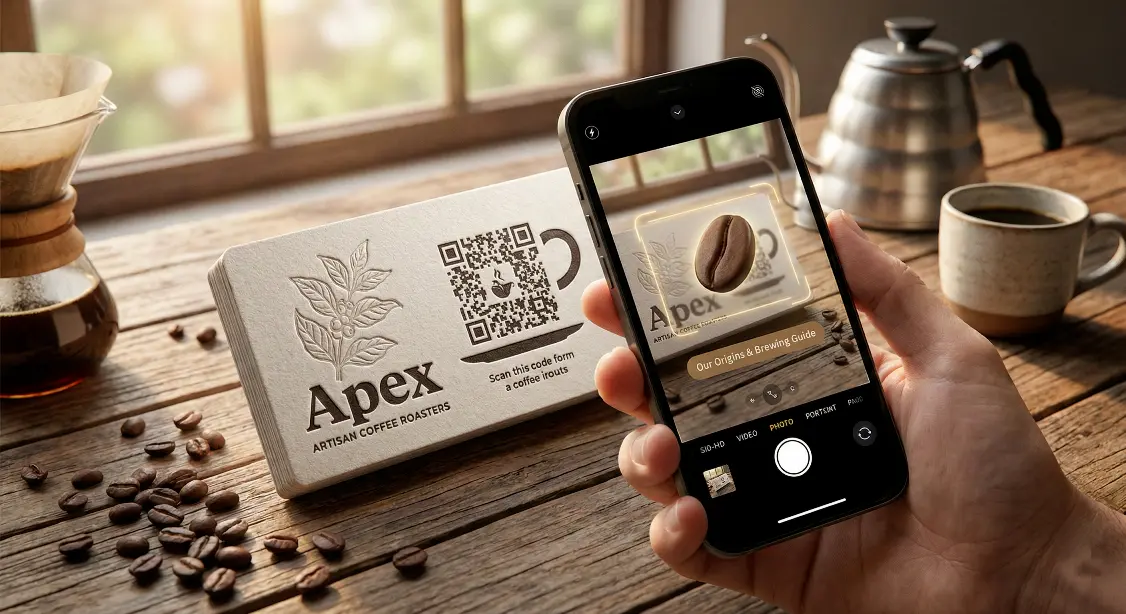
Learn how to create a vCard QR code for business cards, profiles, resumes, and digital sharing. Step-by-step guide with examples and best practices.
If you’ve ever shared your phone number or email manually, you know it can be slow and inconvenient. A vCard QR code solves that problem, when someone scans it, your full contact details are saved instantly into their phone.
This is perfect for business cards, resumes, portfolios, networking, or professional profiles.
In this guide, you’ll learn what a vCard QR code is, why it’s useful, and how to create one step by step.
What is a vCard QR Code?
A vCard QR code is a special type of QR code that stores your contact information, such as:
- Name
- Phone number
- Job title
- Company name
- Website or portfolio link
- Address
- Social profiles
When scanned, the user can save your contact instantly without typing anything.
This is why vCard QR codes are becoming popular in:
- Business cards
- Resumes and CVs
- Digital portfolios
- Networking events
- Company profiles

Why should you use a vCard QR code?
Here are some key benefits:
- Makes networking faster and more professional
- Reduces mistakes from manual typing
- Looks modern and tech-friendly
- Works offline after being scanned
- Helps people save your contact instantly
It gives a better impression than a traditional business card.
How to create a vCard QR code (Step by step) ?
Follow these steps:
Step 1 - Open MakeQRFree.com
Go to
MakeQRFree.com - Free QR Code Generator
Step 2 - Select “vCard QR code”
Choose the vCard / contact option.
Step 3 - Enter Your Contact Details
Add:
- Full name
- Phone number
- Email address
- Job title & company (optional)
- Website link (optional)
- Address (optional)
Step 4 - Customize (Optional)
You may change:
- QR color
- Corner style
- Add logo
Step 5 - Generate and Download
Click Generate / Download QR Code.
Now you can use it anywhere.
Where can you use a vCard QR code?
You can place it on:
- Business cards
- CV / Resume
- Portfolio website
- Email signature
- LinkedIn profile
- Company brochure
- Event badges
- ID cards
Anywhere people need to contact you easily.

Static vs Dynamic vCard QR code
Static vCard QR
- Cannot be edited after creation
- Best for personal use
Dynamic vCard QR
- You can update details anytime
- Track scans
- Best for professionals & business users
If you change phone numbers often, choose dynamic.
Best practices for vCard QR codes :
- Use a simple clean design
- Keep contrast high (dark QR on light background)
- Avoid tiny QR sizes
- Test before printing
- Place it where it is visible
Common mistakes to avoid :
- Using very small QR codes
- Low contrast colors
- Placing on glossy material
- Over-crowded business card designs
- Not testing before printing
A QR code should be easy to scan in one try.
Final thoughts :
A vCard QR code makes networking smarter, faster, and more professional. Whether you’re a business owner, freelancer, student, or job seeker, it helps people connect with you instantly.
You can create your vCard QR code for free at :
MakeQRFree.com - Free QR Code Generator
FAQ Section :
Q1. Do vCard QR codes work on all smartphones?
Yes, they work on Android and iOS devices with any QR scanner or camera.
Q2. Can I edit my vCard after creating the QR code?
Only dynamic vCard QR codes allow editing later.
Q3. Can vCard QR codes be used offline?
Yes, once scanned, contact details are saved even without the internet.
**Author: Make QR Free Team**
Make QR Free Team writes practical, beginner-friendly guides about QR codes, digital tools, and online utilities to help users understand technology in a simple way.