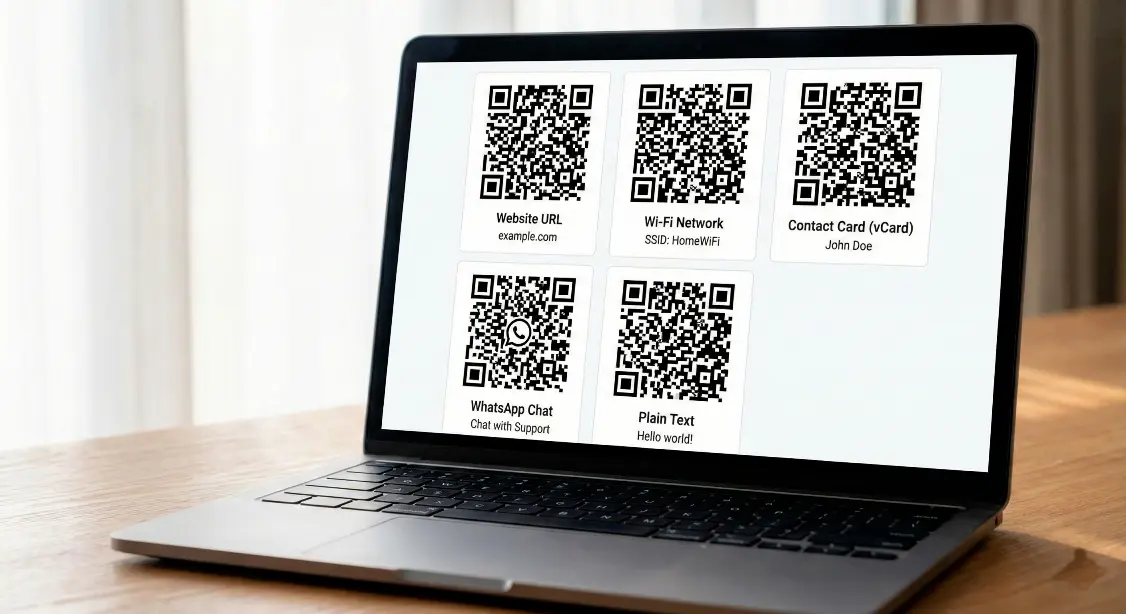
Learn how to create a QR code for any purpose websites, Wi-Fi, WhatsApp, business cards, payments, locations, and more. Simple beginner friendly guide with examples.
QR codes are now used everywhere restaurants, shops, business cards, websites, marketing campaigns, events, and even at home for Wi-Fi sharing. The good news is that anyone can create a QR code and you don’t need technical skills to do it.
In this simple guide, you’ll learn how to create a QR code for any purpose, including websites, Wi-Fi, WhatsApp, payments, contact details, and more.
What can you use a QR code for ?
You can create a QR code for almost anything, such as:
- Website or blog link
- Wi-Fi access sharing
- WhatsApp chat or group
- Business card / contact (vCard)
- Location / Google Maps
- Email or phone number
- Text message or note
- Offer, coupon, or form link
QR codes make it easier for people to access information without typing anything, just scan and go.
Types of QR codes you can create :
Here are the most commonly used QR code types and where they are useful:
- URL QR Code → Redirects to a website
- Wi-Fi QR Code → Auto-connects to a network
- vCard QR Code → Saves contact details
- WhatsApp QR Code → Opens chat instantly
- Text QR Code → Displays a message
- Email QR Code → Opens email composer
- Phone QR Code → Dials a number
- Location QR Code → Opens Google Maps
Whether you’re a student, professional, small business owner, or marketer, there is a QR type for every purpose.

How to create a QR code (Step by step)
Follow these simple steps:
Step 1 - Go to MakeQRFree.com
Open
MakeQRFree.com - Free QR Code Generator
Step 2 - Choose the QR code type
Examples:
Step 3 - Enter the required details
For example:
- Website link
- Wi-Fi name and password
- Phone number or message
- Contact information
Step 4 - Customize the QR code (Optional)
You can change:
- Color
- Shape
- Logo
- Background
Step 5 - Generate and download
Click Generate / Download and save your QR code.
You can now print it, share it, or use it anywhere.

Where can you use your QR code?
QR codes can be used for:
- Posters and banners
- Product packaging
- Restaurant menus
- Business cards
- Event tickets
- Social media links
- Marketing flyers
- Classroom and education
- Customer feedback forms
If used correctly, QR codes improve engagement and save time for users.
Static vs Dynamic QR codes - Which one to use?
Static QR Code
- Fixed information
- Best for personal / one-time use
Dynamic QR Code
- Editable anytime
- Allows scan tracking
- Best for business & marketing
If you plan to use QR codes regularly for campaigns, dynamic is the better choice.
Final Thoughts
Creating a QR code is quick, simple, and extremely useful for both personal and business needs. Whether you’re sharing a Wi-Fi password, promoting a website, or connecting with customers, QR codes make access faster and smarter.
You can start creating your QR codes for free using:
MakeQRFree.com - Free QR Code Generator
FAQ Section
Q1. Do QR codes expire?
Static QR codes do not expire. Dynamic QR codes stay active as long as the link is valid.
Q2. Can I change the link in a QR code later?
Only dynamic QR codes allow editing after creation.
Q3. Do QR codes work without the internet?
Scanning works offline, but opening the destination link requires internet.
**Author: Make QR Free Team**
Make QR Team writes simple, helpful guides about QR codes and digital tools. His mission is to make technology easy to understand for beginners, businesses, and everyday users.